



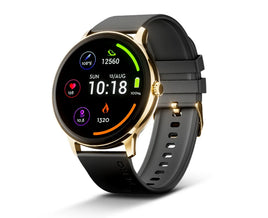
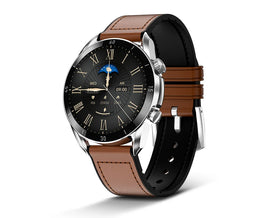
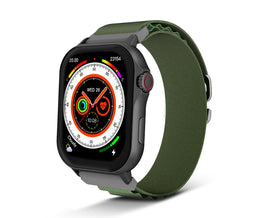
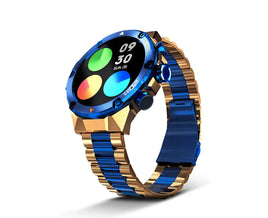


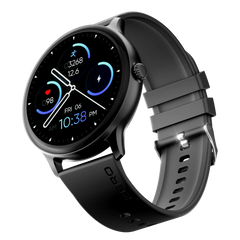
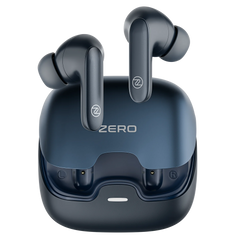
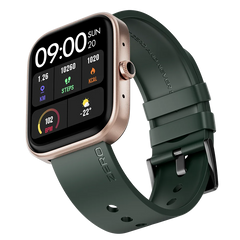
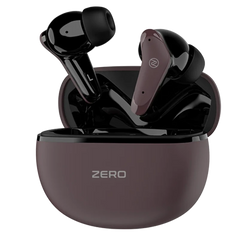
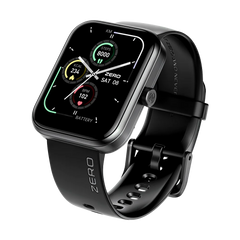
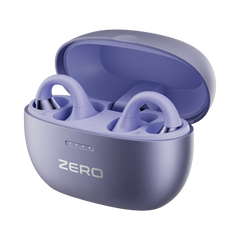
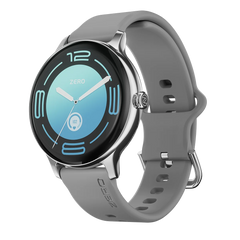

Pairing a smartwatch with an iPhone is easier than most people think, but it works a little differently depending on the watch you’re using. While Apple Watch pairs directly with iOS, many modern smartwatches from other brands are also designed to work smoothly with iPhones using Bluetooth and a companion app.
If you’re using a non-Apple smartwatch, understanding the correct setup process can save time and prevent common connection issues. This guide explains how to pair a smart watch with an iPhone step by step, what to expect after pairing, and how to fix common problems.
Step 1: Check Compatibility Before Pairing
Before starting the pairing process, make sure your smartwatch supports iOS.
Most Bluetooth smartwatches that offer calling, notifications, and health tracking are compatible with iPhones through a dedicated app. All Zero Lifestyle smartwatches are fully compatible with both iOS and Android, so if you own a Luna, Ignite, or any other Zero watch, you’re good to go. However, some advanced features may work differently compared to Android.
What to check first:
- Your iPhone is running a recent version of iOS
- The smartwatch supports iOS pairing
- Both devices have enough battery charge
This small check helps avoid pairing failures later.
Step 2: Turn On Bluetooth on Your iPhone

Turning on Bluetooth in iPhone settings to pair a smartwatch
Bluetooth is required to connect your smartwatch to your iPhone.
- Open Settings on your iPhone
- Tap Bluetooth
- Turn Bluetooth ON
Keep Bluetooth enabled throughout the setup process.
Step 3: Install the Smartwatch Companion App

Installing the smartwatch companion app from the App Store
Most non-Apple smartwatches require a companion app to function properly on iOS.
- Open the App Store on your iPhone
- Search for the app recommended by your smartwatch brand
- Download and install the app
For Zero smartwatches, download the official ZERO Health app from the App Store. It handles pairing, call and app notifications, health and fitness tracking, and customizable watch faces all from your iPhone.
This app allows your watch to sync notifications, manage calls, and track health data.
Step 4: Power On the Smartwatch
Turn on your smartwatch and place it close to your iPhone.
If the watch is new or reset, it will automatically enter pairing mode. If it has been used before, you may need to manually enable pairing from the watch settings.
Step 5: Pair the Smartwatch Using the App

-
Open the companion app on your iPhone
-
Tap Add Device or Pair Watch
-
Select your smartwatch from the list
-
Confirm the pairing code shown on both devices
Once paired, the app will guide you through basic setup options.
Step 6: Grant Required Permissions
For smooth performance, the app will ask for permissions.
These usually include:
- Notification access
- Bluetooth access
- Health and activity data
- Background app refresh
Allowing these permissions ensures calls, alerts, and tracking features work properly.
What Features Work on iPhone (Non-Apple Smartwatches)
When using a non-Apple smartwatch with an iPhone, these features usually work well:
- Bluetooth calling – watches like the Terra Fit and Icon let you answer calls directly from your wrist
- Call and message alerts
- App notifications
- Music control
- Basic health tracking
Some advanced features like quick message replies or deep app integration may be limited due to iOS restrictions.
Common Pairing Problems & How to Fix Them
Smartwatch not appearing in the app
- Restart both devices
- Keep them close during pairing
- Reset the smartwatch if needed
Bluetooth disconnects frequently
- Turn off battery optimization for the app
- Update iOS and smartwatch firmware
Notifications not showing
- Recheck notification permissions in iPhone settings
- Enable background app refresh
Tips for Better iPhone–Smartwatch Performance
- Keep the companion app running in the background
- Avoid pairing multiple watches at once
- Update the smartwatch firmware regularly
- Use original charging cables for stable performance
Best Zero Smartwatches to Pair with Your iPhone
If you’re still choosing a watch, every Zero smartwatch below pairs with iPhone in the exact steps covered above and each one is currently on sale with free delivery and a one-year warranty.
Ignite – Best Battery Life (Rs. 4,999, was Rs. 21,499)
With up to 9 days of battery, the Ignite is ideal if you don’t want to charge your watch every night. Fewer charging cycles also mean a more stable Bluetooth connection with your iPhone throughout the week.
Luna – Bestseller (Rs. 4,999, was Rs. 21,999)
Zero’s most-reviewed smartwatch with a 1.39″ HD display. Over 2,000 customers have rated it, making it the safest pick for first-time smartwatch buyers pairing with an iPhone.
Terra Fit – Best for Bluetooth Calling (Rs. 5,999, was Rs. 21,999)
Built around BT calling with a 2.5D curved glass display — answer iPhone calls straight from your wrist without pulling out your phone.
Edge – Best Big Display on a Budget (Rs. 5,999, was Rs. 19,999)
A 1.83″ HD display makes notifications, messages, and watch faces easier to read at a glance.
Crown – Best Premium Pick (Rs. 11,999, was Rs. 29,999)
Ultra AMOLED display with True Always-On a premium round-dial watch that looks as good with formal wear as it does at the gym.
Regal AI – Best Flagship (Rs. 18,499, was Rs. 39,999)
Conversational AI, Generative AI features, and a True Always-On display for users who want the most advanced Zero smartwatch with their iPhone.
Frequently Asked Questions
Which app do I need to pair a Zero smartwatch with an iPhone?
Download the official ZERO Health app from the App Store. It manages pairing, notifications, watch faces, and fitness tracking for Zero smartwatches.
Do Zero smartwatches work with iPhone?
Yes. All Zero Lifestyle smartwatches are compatible with both iOS and Android. Pair them with your iPhone via Bluetooth and the companion app using the steps in this guide.
Can I answer iPhone calls from a Zero smartwatch?
Yes models with Bluetooth calling, such as the Terra Fit and Icon, let you answer and make calls directly from the watch once paired.
Which smartwatch under Rs. 5,000 pairs best with iPhone?
The Luna and Ignite are both Rs. 4,999 during the current sale and pair with iPhone in under five minutes.
Why won’t my smartwatch connect to my iPhone?
The most common causes are Bluetooth being off, the companion app missing permissions, or an outdated firmware version. Follow the troubleshooting steps above a restart of both devices solves most connection issues.
Final Thoughts
Pairing a smartwatch with an iPhone is a simple process when done correctly. With modern Bluetooth smartwatches, you can stay connected, manage calls, and track daily activity without relying on an Apple Watch.
Understanding compatibility, permissions, and limitations helps you get the best experience from your smartwatch. Once paired properly, your watch becomes a reliable daily companion that works seamlessly with your iPhone.
